OpenAI Dots: How App Access, Approvals, and Data Controls Work
OpenAI Dots can use connected apps between conversations. Learn what app permissions control, what remains after disconnecting an app, and how memory and model-training settings differ.

OpenAI introduced Dots on September 29 as ChatGPT agents that can keep working between conversations on their own cloud computers. To understand what a Dot can do with connected work data, check the app connection, action permissions, Dot context, and model-training settings separately. OpenAI's help pages describe each of those controls.
What connecting an app allows
OpenAI's Getting Started guide says connected apps give a Dot information it can use for assigned tasks. It also says a Dot can review connected information proactively and form memories without waiting for a new question. The guide gives a calendar review as an example.
The available data and actions depend on the app, the account access granted when it is connected, and workspace controls. OpenAI's connected-app guide says permission settings determine when ChatGPT asks before reading connected information or taking an action. Changing a permission does not grant a provider new access or revoke authorization that is already in place. Disconnect the app, or ask a workspace administrator to disable it, to stop future access.
At the app level, OpenAI may offer “Allow all actions” for an eligible app or account; it says standard account-wide and workspace-wide selectors do not include this choice. That setting is separate from prompt-level approval for a proposed action: the persistent “Always allow” option appears only for an eligible, explicitly connected personal account. Managed-workspace members, automatically available connections, and actions requiring extra safety review do not get that prompt option. Either setting remains subject to provider authorization, app capabilities, workspace controls, and safety requirements.
A Dot's computer and your computer
A Dot has its own cloud computer. Access to a person's local computer is optional and starts turned off, according to OpenAI's setup guide. To connect a computer, a user must use the ChatGPT desktop app on that computer and confirm access. Once connected, the Dot can work with its files from its messaging channels. The user can revoke that access in the app.
This is a separate connection from an app such as a calendar or email service. Connecting one does not automatically connect the other. If a task only needs information from an app, local computer access is not required by the documented setup.
Background research and actions
OpenAI says proactive research can read information from permitted connected sources and save private notes. Its tools cannot send messages, change app content, or control a browser or computer. A later task that asks the Dot to take an action follows the normal app permissions and safety checks.
Custom Rules let a user set additional boundaries, such as preventing a Dot from sending email. They cannot override built-in safeguards or the separate safety review system. OpenAI says a Dot may require approval for actions such as permanently deleting data or installing software; actions such as changing a password or transferring money require the user to take over. The company also tells users to review consequential work because Dots can make mistakes.
OpenAI also says an approval given in advance stays within the specific action the user authorized. Approving one message does not give a Dot ongoing permission to contact people. For a future message, the user can specify its recipient, content, and timing.
For a first task, a calendar summary is easier to inspect than a request to change meetings or send invitations. Check which calendar account is connected and which actions it exposes, then review the summary before relying on it. If you later authorize an action, give the Dot a specific task and check the approval prompt rather than assuming a connection grants every possible action.
What remains after disconnecting an app?
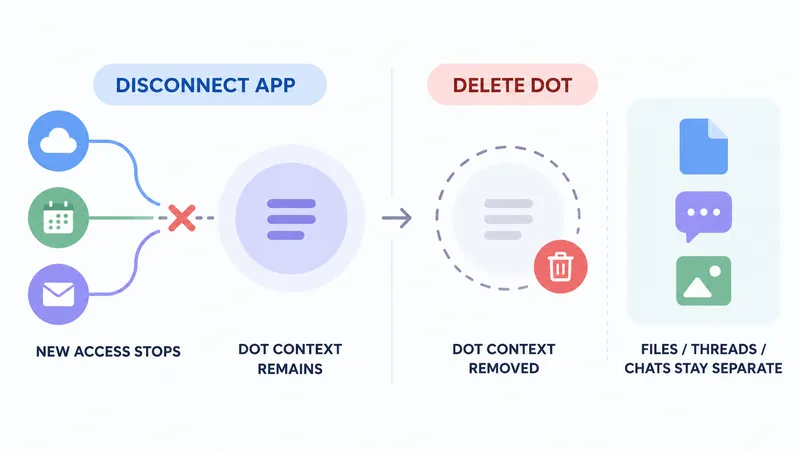
Disconnecting an app stops new access through that connection. It does not delete information the Dot has already retained in its own context. OpenAI says deleting a Dot removes that context, but files, Codex threads, and ChatGPT conversations the Dot created are stored separately and are not deleted with it. Users currently cannot inspect or edit individual Dot memories.
ChatGPT Memory is another setting. OpenAI says turning it off stops memory sharing between ChatGPT and a Dot, but does not erase information the Dot already received. If you want to remove the Dot's own context, use the separate option to delete the Dot.
How model-training settings differ
OpenAI says it does not use content from ChatGPT Business, Enterprise, or Edu workspaces to train its models by default. On personal plans, the “Improve the model for everyone” setting controls whether Dot conversations and work may be used. OpenAI says this may include actions a Dot takes, work it delegates, automations, and connected-app information used in an eligible conversation or task.
The company says it does not train directly on proactive background research or a Dot's private notes. If that information later informs an eligible conversation or task, it may be used according to the user's settings. The Data Controls guide explains that model-training choices and Memory are separate, and that turning off model improvement does not delete saved chats.
Who can use Dots now?
As of October 12, OpenAI's release notes describe a gradual rollout to eligible users aged 18 or older on Pro and Business Premium in supported markets. Pro access excludes the European Economic Area, Switzerland, and the United Kingdom at launch. Enterprise access is a beta that is off by default. Availability can vary during the rollout, so check the plan and workspace settings shown in ChatGPT.
Sources & further reading
- Introducing dotsOpenAI · accessed Oct 12, 2026
- Getting started with your dotOpenAI Help Center · accessed Oct 12, 2026
- Dots privacy, security, and safety FAQsOpenAI Help Center · accessed Oct 12, 2026
- Connected apps in ChatGPTOpenAI Help Center · accessed Oct 12, 2026
- Managing app permissions in ChatGPTOpenAI Help Center · accessed Oct 12, 2026
- Data controls in ChatGPTOpenAI Help Center · accessed Oct 12, 2026
- ChatGPT release notesOpenAI Help Center · accessed Oct 12, 2026